
GovEagle adds Microsoft Teams capture to opportunities
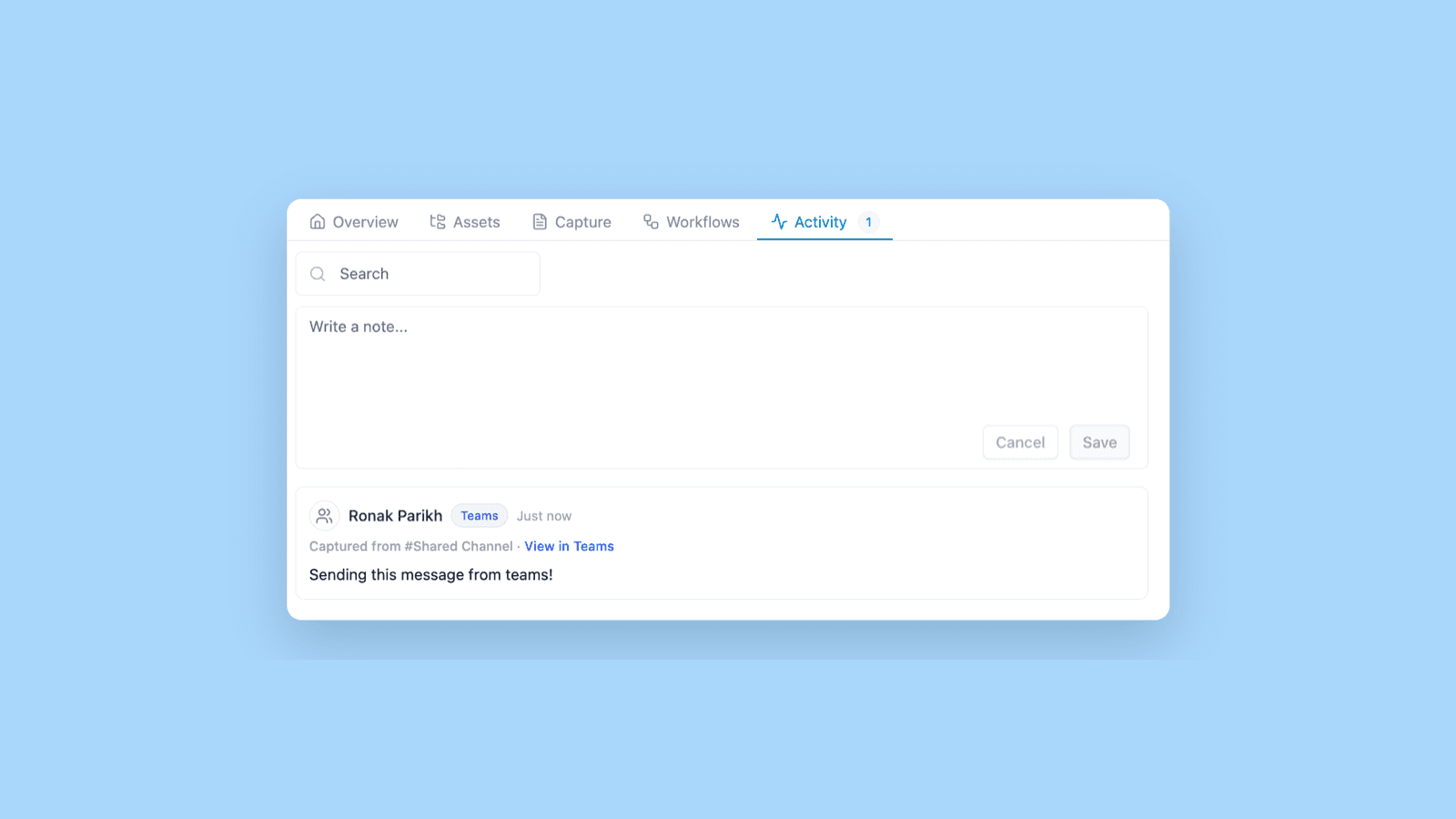
Link a Microsoft Teams channel to an opportunity in GovEagle, and the channel's messages are saved to the opportunity's Activity tab as notes.
What changed
- Full context on every note. Each note shows who posted it, the reactions and who left them, and the replies grouped under the original message, with a View in Teams link.
- You choose what's captured. Capture every message in the channel, or only the ones that @mention GovEagle.
- Read-only. GovEagle never posts anything back to Teams.
Who it helps
Capture teams that make decisions in a pursuit channel. The call on a teaming partner or what the customer said at the industry day stays on the opportunity, so a new writer or a gate reviewer doesn't have to scroll back through weeks of messages.
How GovEagle Teams capture works
One-time admin setup
- Teams capture uses your existing SharePoint connection for the same tenant. In Settings → Integrations, find Teams message capture on the Microsoft SharePoint card and click Set up.
- A Global Administrator in Microsoft Entra ID grants a new admin consent for three read permissions:
ChannelMessage.Read.All,Channel.ReadBasic.AllandTeam.ReadBasic.All. A GovEagle admin then clicks Re-check and Turn on.
For your team
- On the opportunity's Activity tab, click Link Teams channel, paste the channel link, choose whether to Capture every message, and click Start capturing. Anyone with write access to the opportunity can do this.
- GovEagle checks the channel every hour. Use Sync now to pull new messages right away.
Get GovCon capture and proposal insights in your inbox.
Where it fits
Teams capture is one of GovEagle's Microsoft integrations, alongside SharePoint and the Word add-in. For how pursuit decisions feed the capture plan, read how federal capture planning works.
What it doesn't do
- No backfill. Capture starts when you link the channel. Earlier messages aren't imported.
- Messages only. Files, meetings, transcripts, attachments, images and system messages stay in Teams.
- One channel per opportunity. Each opportunity links to one channel, and each channel feeds one opportunity.
- Deleted messages are removed. Deleting a message in Teams removes its note.
Get started
Set up Teams capture → Capturing Teams channel messages
See it on a live pursuit → Book a demo