
GovEagle adds video and audio search to the Content Library
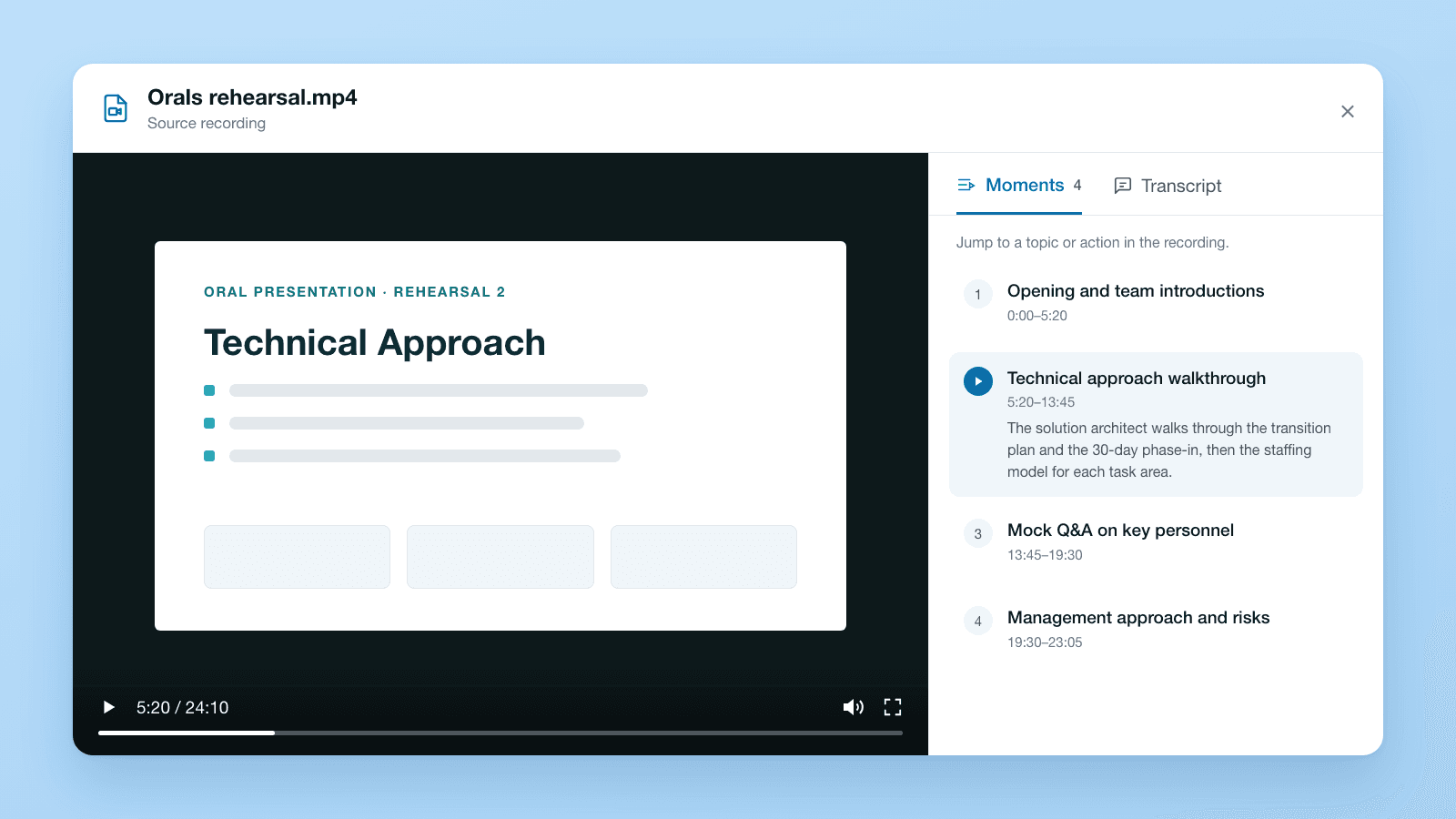
You can now upload video and audio recordings to GovEagle and ask about them the same way you ask about a document.
What changed
- Citations with timestamps. Every answer cites a time range. Click it and the recording plays from the start of that range.
- Transcript and moments. Each recording gets a timestamped transcript and is split into moments, each with a title, a short summary and start and end times.
- It reads the screen, too. For video, GovEagle reads what's shown as well as what's said, so silent screen recordings work as well.
Who it helps
Teams with knowledge locked in recordings: orals rehearsals, customer calls and screen-recorded walkthroughs. After a dry run, an orals coach can ask "Summarize the rehearsal and list each topic with its time range" and jump straight to the section that needs another pass, instead of scrubbing through an hour of footage.
How GovEagle video and audio search works
- In Content Library, open a folder and choose Upload → Upload new content. You can also attach a recording in chat, to opportunity assets, to tasks, or from the Word add-in.
- Upload MP4 video or M4A, MP3 or WAV audio, up to 1 GB and 60 minutes per file.
- Ask a question in chat.
- Click any citation to jump to that moment, or browse the Moments and Transcript views.
Uploading to the content library needs the Edit Content Library permission, which Admins and Content Managers have by default. Members can still attach recordings in chat.
Get GovCon capture and proposal insights in your inbox.
Where it fits
Recordings sit alongside your past proposals and reference documents in GovEagle's knowledge management. For more on running orals, read how to prepare slide decks and oral presentations.
What it doesn't do
- No speaker labels. The transcript is timestamped but doesn't say who is talking.
- Not every format. MOV, WEBM, AVI, MKV, OGG, AAC and FLAC aren't supported.
- Synced SharePoint folders aren't processed yet. Upload those recordings directly.
- It isn't on by default. Video and audio uploads are turned on per organization.
Get started
Supported formats and limits → Uploading video and audio files
See it with your own recordings → Book a demo