
GovEagle Unified Assets: One Tab for All Bid Documents (2027)

Akash Mandavilli
CEO and Co-Founder of GovEagle
About the author
Akash is a 2x founder with previous experience in AI from Meta and federal sales from IBM. Akash holds a dual-degree from Johns Hopkins University in Economics and Computer Science.
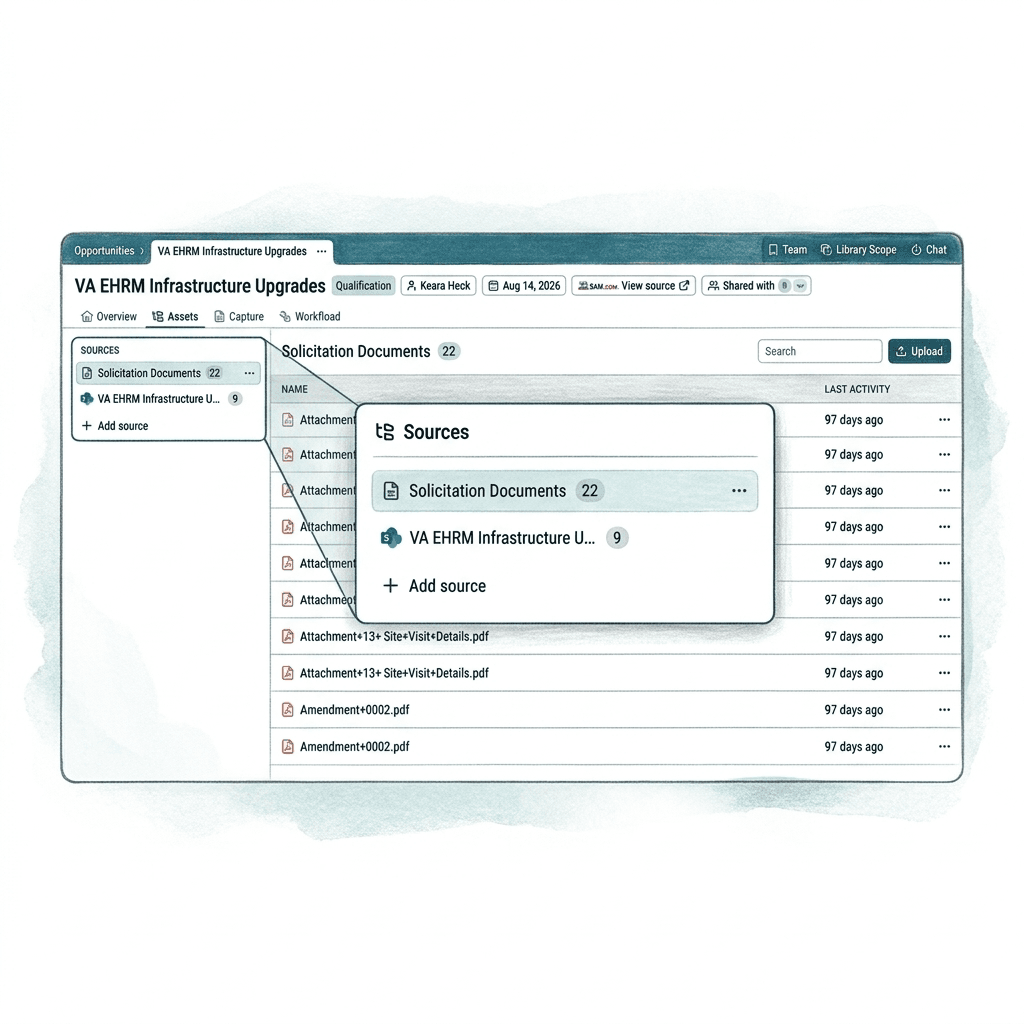
When was the last time your whole pursuit team had every relevant document in one place before a Red Team? The solicitation, the amendments, the Q&A releases, the past performance write-ups, the working technical approach: all scoped to that specific bid, not scattered across drives and inboxes. The Assets tab is what that looks like in practice, and this post walks through how it works and how to set it up for your team.
TLDR:
- Proposal documents split across email, SharePoint, and personal folders cause writers to draft against outdated requirements and Red Teams to flag already-resolved issues.
- The Assets tab gives each opportunity its own workspace, bringing the solicitation package and working files together, and chat inside that opportunity checks that bid's Assets first, then draws on the Content Library for supporting material such as past performance.
- SharePoint sources stay in sync with a folder the team already works in, so amendments and updated PWS files reach GovEagle without manual re-uploads, and with the Sites.Selected permission, updates arrive nightly or when someone clicks Resync SharePoint.
- SAM.gov and Salesforce-linked files carry forward into the Assets tab as named sources, so existing attachments are preserved without manual reorganization.
- GovEagle is FedRAMP Certified (Moderate) and enforces a zero-retention policy, meaning documents staged in the Assets tab are never used to train shared models.
The Core Problem: Proposal Documents Split Across Too Many Places
Federal proposals run on three distinct file categories at once: the solicitation package (RFP, SOW, PWS, amendments, Q&A releases), reference and past performance material, and the team's active working files like technical approaches, pricing spreadsheets, and compliance matrices.
Each category typically lives somewhere different. Solicitation documents land in email or a shared drive. Past performance write-ups sit in SharePoint. Active drafts scatter across personal folders, proposal manager desktops, and whatever collaboration tool the team defaulted to last quarter. By the time a writer needs to cross-reference the PWS against a past performance narrative, they're moving through three systems before writing a single sentence. The search time adds up across business units: Prairie Band now finds proposal content more than 50% faster across its five-plus subsidiaries after bringing that material into GovEagle.
The cost goes beyond frustration. Writers under deadline who can't locate the current amendment often draft against outdated requirements. Reviewers entering a Red Team without the full solicitation package flag issues already resolved in Q&A. These aren't individual failures; they're what happens when document management gets improvised instead of built into the pursuit workflow from the start.
That's the problem Unified Assets is built to fix.
What the Assets Tab Is
Each opportunity in GovEagle gets its own document workspace through the Assets tab. The government's solicitation package, including the RFP, SOW, PWS, amendments, and Q&A releases, sits alongside the team's working files: technical approaches, past performance volumes, pricing spreadsheets, and compliance matrices.
That co-location matters in practice. When a writer needs the current PWS while drafting a technical approach, or a reviewer needs the latest Q&A release before a Red Team, both are reachable from the same tab without switching tools.
The Assets tab also stays strictly scoped to its pursuit. Opportunity-level documents are kept separate from the Content Library, so nothing bleeds across pursuits or influences AI responses on unrelated opportunities. Each workspace reflects only what belongs to that bid.
How AI Chat Uses the Assets Tab
When you open a chat inside an opportunity, GovEagle pulls from that opportunity's Assets tab first. Answers draw from the bid-specific documents staged in that workspace before reaching into the broader Content Library.
The scoping matters when questions get specific. Asking how the incumbent structured their staffing approach, what a PWS task area actually requires, or how Section M weights management versus technical all pull from files tied to that pursuit. Without this scoping, the same question could surface content from an unrelated RFP with a different agency, different requirements, and a different competitive context.
For teams running multiple pursuits simultaneously, this distinction carries real weight. A question about past performance relevance on a DHS recompete should not pull from a DoT proposal sitting in the same account. The Assets tab's per-opportunity isolation is what keeps the right context in scope. Cross-pursuit contamination in AI answers is the friction point here, and GovEagle's AI chat checks the opportunity's Assets tab first, so answers start from that bid's files, with the Content Library supplying supporting material such as past performance. Book a Demo to watch that scoping work against your own pursuit documents.
Document Sources: Upload Sources and SharePoint Sources
The Assets tab organizes files by source type, and that distinction shapes how teams should think about their existing folder structure before connecting anything.
Upload sources hold files added directly to GovEagle, useful for one-off documents or solicitation packages that don't live in a shared drive. SharePoint sources work differently: they stay in sync with a connected folder, named after that folder, so changes made in SharePoint reach GovEagle without a manual re-upload. Update timing and whether GovEagle can write to the folder depend on the Microsoft Graph permission IT granted, covered in the table below. For teams whose proposal site already lives in SharePoint, the Assets tab can reflect the actual working folder instead of a static snapshot from whenever someone last uploaded.
Upload Sources vs. SharePoint Sources in the Assets Tab
| Feature | Upload Sources | SharePoint Sources |
|---|---|---|
| How files are added | Manually uploaded directly to GovEagle | Connected to an existing SharePoint folder |
| Sync behavior | Static: reflects the file at time of upload | Kept in sync with the linked folder; with Sites.Selected, updates arrive nightly or on Resync SharePoint |
| Best for | One-off documents or solicitation packages not in a shared drive | Teams whose active proposal site already lives in SharePoint |
| Folder visibility | Manage access per source | Eye icon (everyone on the opportunity) or lock icon (specific users or groups) per folder; syncing does not change SharePoint permissions |
| Writing files from GovEagle | Upload files or create documents from templates | Sites.ReadWrite.All supports uploads and new documents; Sites.Read.All is a read-only mirror |
| Manual re-upload required on update? | Yes | No |
Linking a broad proposal site does not open every folder to everyone on the opportunity. When linking, each folder carries an eye icon, visible to everyone on the opportunity, or a lock icon, restricted to specific users or groups, and syncing does not change SharePoint permissions. A pricing folder the contracts team maintains can stay restricted even after the parent site connects. See access control for GovCon proposals for more on how these permissions carry through. The SharePoint integration setup covers the technical side of this connection in detail, including support for Commercial, GCC, and GCC High tenants. An IT admin sets up that integration before SharePoint sources can be used.
Existing Files Are Not Lost: SAM.gov and Salesforce Imports
Switching to Unified Assets does not wipe out files already attached to an opportunity. Solicitation documents pulled in from SAM.gov contract opportunities, materials linked from a Salesforce opportunity, and any reference files added before the migration all appear as their own named sources inside the Assets tab. The source label tells you where each file came from, and nothing requires manual reorganization.
For teams whose pipeline runs through Salesforce, this matters immediately. Opportunity records synced through CRM integration with Salesforce bring their attached documents into the Assets tab as a distinct source, keeping CRM-linked files visible alongside the solicitation package without merging them into a single undifferentiated pile. Files already attached to Salesforce opportunity records carry forward into the proposal workspace intact.
Get GovCon capture and proposal insights in your inbox.
Setting Up Default Asset Sources for Every New Opportunity
Admins configure this once in Settings > Opportunity Management > Assets, where up to 20 default sources can be set up. Whatever sources are set there become the default starting point for every new opportunity created afterward, so teams aren't manually reconnecting the same SharePoint folder or re-uploading the same reference package on each pursuit.
The individual user creating a new opportunity can still modify those defaults at creation time. If a particular pursuit needs a different SharePoint source or an additional upload folder, that adjustment happens without touching the org-wide configuration. Users can also add sources or remove default sources they don't need when creating the opportunity, so the defaults are a starting point, not a minimum. Inside the Assets tab, users can create documents from templates, and when duplicating an opportunity, users choose which sources to copy over.
For Proposal Managers, the baseline document structure is already in place when a new opportunity opens. For admins, it means consistent source setup across the team without depending on each user to configure it correctly.
Activating Unified Assets (Beta)
Unified Assets is currently in beta. To turn it on for your organization, email support@goveagle.com and request enrollment. The support team turns the feature on for your account, and teams that want SharePoint sources need an IT admin to set up the SharePoint integration first.
Once active, existing opportunities also get the Assets tab, and their current files move into named sources (Solicitation Documents, Reference Documents, Salesforce, SAM.gov); admin default sources apply only to opportunities created afterward. See the Opportunity Assets help article for full setup steps. You can track what ships in each release cycle at GovEagle product updates as the beta matures toward general availability.
GovEagle's Knowledge Management Architecture and the Assets Tab
The Assets tab reflects a deliberate architectural choice: opportunity-level documents stay isolated from the shared Content Library, so Assets are kept separate and don't affect other opportunities, and chat inside an opportunity checks that bid's Assets before turning to the Content Library for supporting material. Without that boundary, a large or multi-division team running concurrent pursuits risks contaminating one bid's AI context with documents from another agency, a different contract structure, or an old proposal written for a different competitive environment.
That isolation connects directly to GovEagle's broader knowledge management capabilities, where the Content Library holds reusable organizational assets and the Assets tab holds pursuit-specific material. The two layers work together without mixing. Customers bringing proposal material into GovEagle have seen measurable outcomes: Chevo cut proposal prep time by 30 to 40 percent on RFIs, and UpdraftCo delivers compliance packages 97 percent faster across client engagements.
For teams handling CUI, the security posture behind this environment matters. GovEagle is FedRAMP Certified (Moderate) through its partnership with Knox Systems and enforces a zero-retention policy, meaning proprietary documents staged in the Assets tab are never used to train shared models. FedRAMP certification and a zero-retention policy may be required depending on agency, contract type, and whether the environment touches CUI, and contractors typically confirm both before a knowledge base integration tool touches controlled material.
Final Thoughts on Scoped Document Workspaces for Government Proposal Teams
Getting the right documents in front of the right people at the right stage of a pursuit is less a technology problem than an architecture problem, and that architecture has to be built into the workflow from the start. Unified Assets gives each opportunity its own workspace, keeps AI responses scoped to that bid, and carries forward existing files from SAM.gov, Salesforce, and SharePoint without manual reorganization. That per-opportunity isolation keeps the right context in scope from day one: before the first draft, before the first review cycle, and before the Red Team walks in.
FAQ
How does GovEagle Unified Assets keep one pursuit's documents from bleeding into another when your team is running multiple bids simultaneously?
Each opportunity in GovEagle gets its own Assets tab that holds only the documents tied to that bid. When you open an AI chat inside an opportunity, GovEagle pulls from that opportunity's Assets tab first, so a question about DHS past performance relevance won't surface content from a DoT proposal sitting in the same account.
Can I connect GovEagle Unified Assets to an existing SharePoint proposal site without migrating files or rebuilding folder structures?
Yes. Once an IT admin has set up the SharePoint integration, a linked folder becomes its own source and stays in sync, so changes made in SharePoint reach GovEagle without a manual re-upload (with Sites.Selected, updates arrive nightly or when someone selects Resync SharePoint). Each folder can be visible to everyone on the opportunity or restricted to specific users or groups, such as a pricing folder the contracts team manages, and syncing does not change SharePoint permissions.
What happens to solicitation documents already pulled from SAM.gov or attached to a Salesforce opportunity when Unified Assets is turned on?
Existing files carry over intact. Documents pulled from SAM.gov, materials linked from a Salesforce opportunity record, and any reference files added before the migration all appear as named sources inside the Assets tab, labeled by origin. Nothing requires manual reorganization, and files imported from Salesforce stay visible alongside the solicitation package without merging into a single undifferentiated pile.
GovEagle Unified Assets vs. storing proposal documents in SharePoint alone: what does the Assets tab add?
SharePoint stores files; the Assets tab scopes them to a specific pursuit and connects them directly to GovEagle's AI chat and drafting workflows. GovEagle checks the bid-specific documents in that opportunity's Assets tab first, then the Content Library for supporting material such as past performance, so when a writer asks how the PWS structures a task area, or a reviewer needs the latest Q&A release before a Red Team session, the answer starts from the right pursuit's files instead of an unrelated RFP with different agency requirements and competitive context.
How do admins set up default document sources so new opportunities start with the right files already in place?
Admins configure default sources once in Settings > Opportunity Management > Assets. Those sources become the starting point for every new opportunity created afterward, so teams aren't manually reconnecting the same SharePoint folder on each pursuit. The user creating a specific opportunity can still adjust those defaults at creation time without touching the org-wide configuration.